Translate

Thursday, 23 April 2020

15+ Figma Plugins to Help You Design Better

15+ Figma Plugins to Help You Design Better

Figma, the second most-used tool for designing user interfaces (and the first most-used tool when counting only Windows OS), has really taken the digital design industry by storm lately, with even Adobe XD shipping their own version of Figma’s multiplayer feature (naming it “coediting”).

However, the hot topic at Figma right now is the release of plugins — extensions that Figma users can install on Figma to allow for extra functionality or to improve their design workflow.

Let’s take a look at some of the best Figma plugins so far.

1. Arrow Auto (create user flows)

Arrow Auto

Arrow Auto adds flowchart functionality to Figma, which is useful for creating user flow maps. Select any two objects on the canvas and Arrow Auto will enable you to draw a connector between them. You can also hide and show the flows on demand.

Autoflow is a decent (and maybe nicer looking) alternative, but Arrow Auto has more features, including the ability to switch connector directions and also move connected objects around while keeping connectors intact.

2. Angle (utilize device mockups)

Angle

Angle allows you to display your screens (i.e. artboards) from within a number of realistic or matte-effect device frames that each come with a variety of angle options and shadow styles.

Impressively, they’re 100% vector as well.

Artboard Studio isn’t quite the same thing, as it allows for inserting a whole bunch of random 3D objects onto the canvas (like a kiwi, for example). If you only care about device mockups, I’d install Angle. Vectory 3D is similar to Artboard Studio, but it outputs actual 3D assets.

3. Master (manage components more easily)

Master

Master offers a better way to manage components, such as the ability to turn multiple identical objects into a component, duplicate components into other Figma files, and much more.

4. Clean Document (auto-clean documents)

Clean Document

Clean Document, well … cleans your document! It deletes hidden layers, sorts them intelligently, renames them according to your liking, ungroups single-layer groups, and even rounds dimensions to the nearest pixel. A terrific tool for obsessive neat freaks!

5. Similayer (select similar layers)

Similayer

Quite simply, Similayer allows you to select layers based on their similarity to the layer that’s currently selected. Let’s say that you wanted to change a shadow style that’s being used on a number of different elements: Similayer could do that.

You could also use it to batch-reassign multiple components.

6. Viewports (change the viewport)

Viewports

Find out the correct market share of all viewport dimensions, then apply them to frames. It’s insane how useful this is!

Viewport data is live-sourced from StatCounter.

Continue reading 15+ Figma Plugins to Help You Design Better on SitePoint.


Hackers Trick 3 British Private Equity Firms Into Sending Them $1.3 Million

In a recent highly targeted BEC attack, hackers managed to trick three British private equity firms into wire-transferring a total of $1.3 million to the bank accounts fraudsters have access to — while the victimized executives thought they closed an investment deal with some startups. According to the cybersecurity firm Check Point, who shared its latest investigation with The Hacker News,

Wednesday, 22 April 2020

Buying a secondhand device? Here’s what to keep in mind

If you’re trying to be responsible towards the planet, also be responsible to yourself and take these steps so that the device doesn’t end up costing you more than you’ve saved

The post Buying a secondhand device? Here’s what to keep in mind appeared first on WeLiveSecurity


Serious flaws found in multiple smart home hubs: Is your device among them?

In worst-case scenarios, some vulnerabilities could even allow attackers to take control over the central units and all peripheral devices connected to them

The post Serious flaws found in multiple smart home hubs: Is your device among them? appeared first on WeLiveSecurity


10 Must-have VS Code Extensions for JavaScript Developers

10 Must-have VS Code Extensions for JavaScript Developers

In this article, I’ll focus on a list of must-have VS Code extensions for JavaScript developers.

Visual Studio Code (VS Code) is undoubtedly the most popular, lightweight code editor today. It does borrow heavily from other popular code editors, mostly Sublime Text and Atom. However, its success mainly comes from its ability to provide better performance and stability. In addition, it also provides much-needed features like IntelliSense, which were only available in full-sized IDEs like Eclipse or Visual Studio 2017.

The power of VS Code no doubt comes from the marketplace. Thanks to the wonderful open-source community, the editor is now capable of supporting almost every programming language, framework and development technology. Support for a library or framework comes in various ways, which mainly includes snippets, syntax highlighting, Emmet and IntelliSense features for that specific technology.

VS Code Extensions by Category

For this article, I’ll focus on VS Code extensions specifically targeting JavaScript developers. Currently, there are many VS Code extensions that fit this criterion, which of course means I won’t be able to mention all of them. Instead, I’ll highlight VS Code extensions that have gained popularity and those that are indispensable for JavaScript developers. For simplicity, I’ll group them into ten specific categories.

Snippet Extensions

When you first install VS Code, it comes with a several built-in snippets for JavaScript and Typescript. Snippets help you write repetitive code quickly. However, you may find these may not be enough. You can easily create your own, or you can simply install an extension that includes a bunch of new useful snippets. A quick tip if you want snippets to show on top of suggestions is to use this configuration:

{
  "editor.snippetSuggestions": "top"
}

Here are some of the most popular snippet extensions for JavaScript developers. However, I would recommend you install just one for simplicity’s sake.

  • JavaScript (ES6) code snippets, by Charalampos Karypidis. This is currently the most popular javaScript snippet extension with over 3+ million installs to date. This extension provides ES6 syntax for JavaScript, TypeScript, HTML, React and Vue. All snippets include a final semicolon.

  • JavaScript (ES6) code snippets in StandardJS style, by James Vickery. This is basically a fork of the above extension for those who prefer StandardJS style convention—that is, the snippets don’t have semicolons.

  • JavaScript standardjs styled snippets, by capaj. Another StandardJS Styled snippets but this one is more popular with over 72k installs. Originally forked from Atom StandardJS snippets. Contains a huge collection of handy snippets and supports JavaScript, TypeScript and React.

  • JavaScript Snippets, by Nathan Chapman. A collection of JavaScript snippets with about 33k+ installs to date. This snippet extension supports Node.js, BDD Testing frameworks such as Mocha and Jasmine.

  • Atom JavaScript Snippet, by Saran Tanpituckpong. With about 26k+ installs to date, the snippets in this extension were ported from atom/language-javascript. JavaScript snippets ported from the atom/language-javascript extension.

Syntax Highlighting Extensions

The latest version of VS Code supports better syntax colorization and is now more in line with the standards set in Atom grammar. Hence, extensions such as JavaScript Atom Grammar are no longer needed.

However, we still have a few syntax highlighting extensions that are quite useful when it comes to certain types of projects and file extensions. Here’s a few:

  • Babel JavaScript, by Michael McDermott. With over 550k+ installs to date, this extension provides syntax highlighting for ES201x JavaScript, React, FlowType and GraphQL code.

  • DotENV, by 833,737. With over 833k installs to date, this extension supports syntax highlighting for environment settings — that is, .env files.

  • Bracket Pair Colorizer 2, by CoenraadS. With 730k+ installs, this extension highlights matching brackets with different colors, helping you identify which bracket belongs to which block.

Linter Extensions

Have you have ever gotten into a debate with your teammates over tabs vs spaces or semicolons vs no semicolons? You’ll realize that people have strong opinions about which coding style to use. Nevertheless, everyone on the same team needs to use the same coding style regardless of their opinion.

However, it’s quite common for programmers to forget which coding styling they agreed to work with. To enforce the rules, we need to use linters that compare your code with the rules you’ve established. You define your rules by picking a popular coding style such as Standard, Google, and Airbnb. You can use them as is or use a configuration file to customize the rules. VS Code doesn’t have a built-in JavaScript linter, so you’ll need to install an extension.

Here are the extensions we have available:

  • ESLint, by Dirk Baeumer. With over 8 million installs, this is the most popular extension providing support for the ESLint library. In order for the extension to work, your project will need ESLint packages and plugins installed. You’ll also need to specify an .eslintrc, which will specify the rules the extension will use to lint your code .

  • JSHint, by Dirk Baeumer. With 1.2M+ installs, this extension supports linting with the JSHint library. A .jshintrc configuration file is required for the extension to lint your code.

  • StandardJS – JavaScript Standard Style, by Sam Chen. This extension (259k+ installs) simply integrates JavaScript Standard Style into VS Code. You’ll need to install standard or semiStandard as a dev dependency in your project. No configuration file is required. You’ll need to disable VS Code’s built-in validator for this extension to work.

  • JSLint, by Andrew Hyndman. This extension provides linting with the JSLint library. You’ll need to install jslint locally or globally for the extension to work. It has 109k+ installs to date.

If you’d like an overview of available linters and their pros and cons, check out our comparison of JavaScript linting tools.

Node Package Management Extensions

Every JavaScript project needs to at least one npm package, unless you’re someone who likes doing things the hard way. Here are a few VS Code extensions that will help you work with managing and working with npm packages more easily.

  • npm, by egamma. With over 2.3M+ installs, this extension uses package.json to validate installed packages. If anything is missing or versions are mismatched, the extension will provide you with clickable options to fix the issue. In addition, you can also run npm scripts defined in package.json right inside the editor.

–npm IntelliSense, by Christian Kohler. With 1.9M+ installs, this extension provides autocompleting npm modules in import statements.

npm IntelliSense demo

  • Path IntelliSense, by Christian Kohler. With 2.7M+ installs, this extension autocompletes filenames. It also works inside HTML and CSS files.

  • Node exec, by Miramac. With 168k+ installs, this extension allows you to execute the current file or your selected code with Node.js by pressing F8 on your keyboard. You can also cancel a running process by pressing F9.

  • View Node Package by Dominik Kundel. With 55k+ installs, this extension allows you to quickly view a Node package source and documentation while you’re working with your code.

  • Node Readme, by bengreenier. With 52k+ installs, this extension allows you to quickly open an npm package documentation right inside the VS Code editor as a separate tab.

  • Search node_modules, by Jason Nutter. By default, the node_modules folder is excluded from VS Code’s built-in search. With over 470k installs, this extension allows you to quickly navigate and open files in node_modules by traversing the folder tree.

Search Node modules
Source: vscode-search-node-modules
  • Import Cost by Wix. This displays how much disk space a package is using when you import it. The extension has 562K+ installs.
Import cost demo
Source: import-cost

Formatting Extensions

More often than not, we sometimes write code that’s out of alignment with the rest of the code. To fix this, we need to go back and fix the indentation in each line. In addition, we need to ensure braces and tags are properly formatted in a readable format. This process can quickly get tedious.

Luckily, we have extensions that can do the work for us. Please note extensions such as Prettier and Beautify can’t both be active simultaneously.

  • Prettier Code Formatter, by Esben Petersen. This is the most popular extension that supports formatting of JavaScript, TypeScript and CSS using Prettier. It has over 5.7 million installs to date. It’s recommended you install prettier locally as a dev dependency.

  • Beautify, by HookyQR. A jsBeautifier extension that supports JavaScript, JSON, CSS and HTML. It can be customized via a .jsbeautifyrc file. It’s now the second most popular formatter, with 4.4 million installs to date.

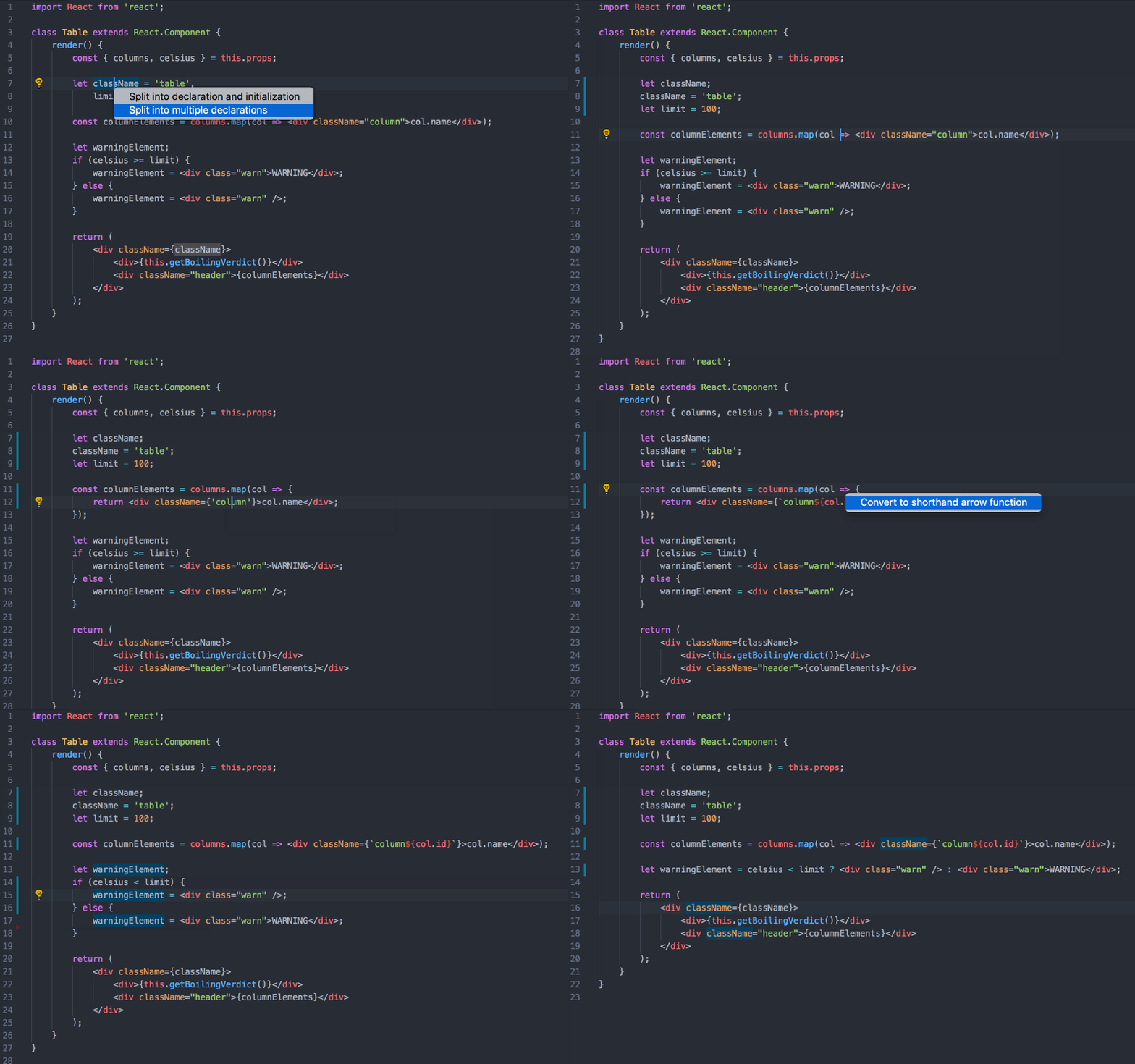
  • JS Refactor, by Chris Stead. This provides a number of utilities and actions for refactoring JavaScript code, such as extracting variables/methods, converting existing code to use arrow functions or template literals, and exporting functions. It has 140k+ installs to date.

  • JavaScript Booster, by Stephan Burguchev. This is an amazing code refactoring tool. It features several coding actions such as converting var to const or let, removing redundant else statements, and merging declaration and initialization. Largely inspired by WebStorm, it has 74k+ installs to date.

JavaScript Booster Demo
Source: vscode-javascript-booster

Continue reading 10 Must-have VS Code Extensions for JavaScript Developers on SitePoint.


The Leading Web Tools and Services in 2020

The Leading Web Tools and Services in 2020

This sponsored article was created by our content partner, Mekanism. Thank you for supporting the partners who make SitePoint possible.

Even with 2020 starting with a huge pandemic — a crisis that has affected many people and businesses — some of the web tools and services that are very popular are doing extremely well.

In this article, you’ll find out more about the leading web tools and services in 2020. There are over 30 solutions from various fields: UI Kits, templates and dashboards; a complete package of services for WordPress; different logo creators; some of the most used WordPress themes; website builders that can be used with 0 experience with awesome results; and much more.

Here goes.

1. Creative Tim

Creative Tim web dev bundle

Creative Tim offers both students and professionals fully coded UI tools to create web and mobile apps. They are built on top of Bootstrap, Vue.js, React, Angular, Node.js and Laravel, and each of these technologies has a FREE version.

What does a free version contain? Let’s take, for example, the most popular kit, called Material Kit.

Along with the restyling of the Bootstrap elements, you’ll find three fully coded example pages, two plugins, and 60 elements, inspired by Google’s Material Design.

Creative Tim also offers developers six Bundles, one for each technology. Everything included in the products can be downloaded for free under MIT License. On the website, you’ll also find pre-made section and elements, admin templates, and fully coded dashboards.

If you don’t know them, check out their website and their Facebook page.

2. 48HoursLogo.com

48 Hours Logo

Need a creative logo design on a tight budget? 48hourslogo is proud to offer the most affordable logo design contest on the Internet. Customers simply post a design brief, receive 20+ logo concepts and select their favorite design. For just $99, customers can expect maximum creativity and unlimited logo revisions and exclusive logo copyright.

48hourslogo has connected freelance designers with entrepreneurs and brands across the world for more than 10 years. Since 2009, 48hourslogo has helped more than 65,000 small businesses and entrepreneurs creating their logos. Their designer community has uploaded more than 5 million logos in the process making them one of the top logo design websites on the Internet. If you’re still not sure if a logo contest is right for your brand, you can start a contest for just $29. Take a look at the designs submitted before paying full contest prize.

3. UPQODE Web Design Agency

UPQODE website

UPQODE is an award-winning, customer-focused, quality-driven digital marketing and web design agency specializing in WordPress. As a values-driven company, they work one-on-one with you to take your online vision and turn it into reality through innovative, sleek and powerful websites that drive traffic and increase brand recognition.

Their goal is to exceed your expectations, and they do that by working with care and openness.

By taking time to understand your goals and business objectives, they strive to be your partner in this process not just your “developers”.

With the transparent workflow that provides you insight into the process and rolling design approval, they know that the only way to create your online success is together.

4. Total Theme

Total Theme website

Total is the perfect WordPress theme, being loaded with everything you need to easily design hundreds of unique websites. You’ll find included 80+ builder modules, 40+ pre-made demos, 500+ styling options, and a drag-and-drop builder that will hugely help you along the way.

This WordPress theme is very different from all the others. Total is very fast, flexible, fully responsive, easy to work with, all the demos can be installed with one click, and it will make your website look exactly as in the demo, and much more.

Check out Total. This all-in-one WordPress theme will help you create gorgeous websites.

5. Codester

Codester website

Codester is a huge marketplace where web designers and web developers will find thousands of premium PHP scripts, app templates, themes, plugins, and much more.

Always check the flash sale section where hugely discounted items are being sold.

6. Dr. Link Check

Dr. Link Check website

Everybody hates broken links. Manually cleaning them is a time-consuming task, and even impossible for very large and old websites.

Dr. Link Check will do the scan automatically for you, in a few seconds, and send you a complete report.

Enter your website address and hit the Start Check button. It’s that simple.

7. Design invoice template

Bonsai

Trusted by over 200k freelancers and agencies, Bonsai is dedicated invoicing software that will make your life easy by saving you tons of time.

You can do your own design invoice template. You can automate everything — creation, sending and reminding … even automatic late fees. You can also accept global payments, and much more.

Invoice like a pro.

8. FunctionFox

FunctionFox site

FunctionFox is a leading provider of timesheets and project management software for remote creative teams worldwide. It was created by an ad agency for advertising agencies, graphic designers, PR, digital, marketing firms and in-house creative teams. FunctionFox is loved by small firms and Fortune 500 companies worldwide for being easy to use, for its 5-star service, and its free expert advice. Easily handle multiple jobs, assign tasks, create to-do lists, and manage resources, including remote workers.

Boost your productivity and profitability by getting your free demo today at FunctionFox.

9. Mobirise

Mobirise

Mobirise is a super offline website builder, loaded with tons of good stuff:

  • 3,000+ gorgeous website templates
  • sliders, galleries, forms, popups, icons
  • a superb and fast interface
  • much more

You don’t need any experience to create awesome websites with Mobirise.

10. Affordable design to code web development service

Goodie Website

Goodie is the reliable web development partner that agencies and web designers are always looking for. They’re specialized in one-to-ten-page modern websites, simple WordPress websites, email templates, and much more.

Get in touch with Goodie.

11. airfocus

airfocus

Build outstanding products with powerful prioritization and clear roadmaps. airfocus is a software solution for teams that enables you to prioritize your projects with an advanced but easy-to-use scoring system. Drag’n drop beautiful and presentation-ready roadmaps in minutes. Get everyone aligned and the right stuff done. airfocus integrates with your existing workflows and tools like Jira, Trello, Azure DevOps and Asana to get you started in minutes.

Airfocus has the largest glossary of common product management, product marketing, and agile development terms and definitions.

Start your free 14-day trial on airfocus.com.

12. Landing pages

MailMunch

MailMunch will help you create landing pages and squeeze pages that convert.

Using the drag-and-drop landing page builder, it’s easy to create any layout in minutes. Start from scratch or use the beautiful pre-built landing page templates. Any way you go, it’s simple and straightforward.

Use the fastest-growing landing page platform to increase conversions by up to 400%.

13. Email template builder

Unlayer

Unlayer is the perfect email editor and page builder for SaaS that will let your website visitors create engaging landing pages and email templates directly from your website.

It comes loaded with a brilliant drag-and-drop builder, with gorgeous templates, and a friendly and quick interface.

Check out Unlayer.

14. XStore – The King-Size WooCommerce Theme

XStore

XStore makes ecommerce easy. It’s as simple as that. And, look no further if you’ve been hoping to find a game-changer for your ecommerce needs: 90+ good-to-go shops. A single product page builder. A page importer. Plugins valued at just over $300. Fully compatible with the most popular multivendor plugins. Full support for Elementor page builder.

15. Zentoshop

Zentoshop

Zento is a next-generation SaaS eCommerce solution built with mobile shoppers in mind using the solid foundation of Magento 2, which allows companies to sell everywhere, faster, easier and with predictable costs.

16. Icons8 Design Tools

Icons8

Icons8 is a one-stop place for designers to get the diversity of free assets. Over 120,000 icons in 30+ different styles; vector illustrations for interfaces, slides, and infographics; a library of various stock photos in a consistent style; Photo Creator to make photo collages easily; and Lunacy Editor, free graphic design software.

17. Content Snare

Content Snare

Content Snare is the most popular service for collecting content and files from clients without sending emails. With this platform you’ll easily automate the task of collecting content, and you’ll save important time.

The configuration is very simple and straightforward.

Continue reading The Leading Web Tools and Services in 2020 on SitePoint.



Understanding the Dynamics of Custom Software Development

Many organizations find themselves looking for software solutions that simply do not exist on the market today. After endless searching, they finally decide to seek out a software development company, like BairesDev, to turn their ideas into a reality.

The process of custom software development is the designing, creation, deployment, and maintenance of software built for a specific user, function, or organization as a whole. Compared to commercial off-the-shelf software products (COTS), custom-developed software is built to meet a narrow, specific set of requirements. Commercial off-the-shelf products are obviously designed to appeal to the masses as they are commercially marketed and distributed.

Custom software development is typically performed by a third-party outsourced team for maximum efficiency or handled by in-house development teams when resources are available. The same methodologies and processes apply to this process as with other types of development projects. A timeline of gathering requirements, writing of the code, testing, and deployment are used in a methodology such as Agile, Waterfall, or DevOps.

Why Choose Custom Software Development?

Understanding the Dynamics of Custom Software Development

When compared to the cost of purchasing, maintaining, and modifying commercial off-the-shelf software products, custom software development is a competitive choice in terms of cost for meeting a company’s needs. It also offers a number of benefits, including:

  • Efficiency: Custom-built software is designed around a purpose while supporting processes as productively and efficiently as possible. This eliminates timely problems such as the need to adjust commercial off-the-shelf products or reworking them to meet the specifications of the need.
  • Lower Cost of Integration: When working with commercial software products, the issue of compatibility with existing and legacy systems is always a major concern. If the software doesn’t work with these systems, organizations must invest even more money into the product and purchase additional commercial software to allow for communication between the systems while operating within their existing infrastructure. Custom software solutions are buildable by software development companies to integrate with existing systems without future issues.
  • Scalability: Businesses are constantly expanding and changing over time, and their software solutions must keep up with this growth as well. In the process of custom software development, designers and developers work together with customers to assess the potential needs of the future for their company as part of the initial gathering of requirements. This information is then incorporated into the plans for the project so that additional licenses, programs, or subscriptions are not needed in the future.
  • Profitability: Depending on the terms and conditions of the project at hand, it is actually possible for companies to make money with custom software development. Businesses that develop their own software and fully own the product are able to sell licenses for use of the product or sell it in whole to other organizations with similar needs.
  • Autonomy: Being free of commercial software products and vendors helps organizations avoid expensive ongoing license renewals, support costs, and price increases for said licenses. Companies with custom software can also rest assured that their software is not abandoned should the vendor go out of business or the product is taken off the market, which is a common problem when using a commercial off-the-shelf solution.

Successful Custom Software Development

There are a few helpful tips and tricks to keep in mind when preparing to have a custom product developed and going through the process itself:

  • Before jumping into a custom development project, ensure that the product is actually needed. There needs to be a good reason for custom development instead of buying an existing packaged solution.
  • Ensure that collaboration is going to be a top priority throughout the custom development process. Key participants in the project should be aware that their input is required throughout its duration. These participants can include users, developers, end-users, and other important figures within the organization. Collaborating helps to identify potential future issues, gives input on decisions throughout the development cycle, and feedback helps developers tailor the solution to the exact needs of the customer.
  • The customer must understand their own importance throughout the development process. Their requirements are the roadmap that the developers need to follow in order to arrive at the necessary endpoint. If the developers are not made aware of details due to inadequate planning or a lack of communication from the client, things may go awry.
  • A realistic plan with milestones needs to be in place for each and every software development project. Milestones help the development team stay on track while keeping the customer in the loop of the status of their project. These various stages require defining in terms of both time and cost. These milestones are then available for review at the next meeting to let both the dev team and client know where everything stands, if the project is going to be complete on time, and if things are staying within the budget.

Custom software development allows companies to use technology to solve specific problems within their organization. When these solutions are correctly developed for these problems, they can support enduring growth and success for all parties involved.

The post Understanding the Dynamics of Custom Software Development appeared first on The Crazy Programmer.